
Reporting: Flag Changes Over Time
A new report lines up every flag change against your evaluation volume, so when something moves you can see what changed right before it and who changed it.

It's Thursday afternoon and something looks off. Traffic dipped, or an alert fired, or support just pinged you. The first question is always the same: what changed? Your deploy log has the answer for code. It has nothing to say about the three flags somebody adjusted an hour ago, because flag changes don't go through a deploy. They happen in a dashboard, which is exactly why they're easy to forget about when you're hunting for a cause.
Zenmanage now includes a Flag Changes Over Time report. It plots every flag change as a marker on top of your evaluation volume, so you can see what changed, who changed it, and what the traffic did around it. You can find it in the reports section for any project environment.
Flag Changes Over Time Report
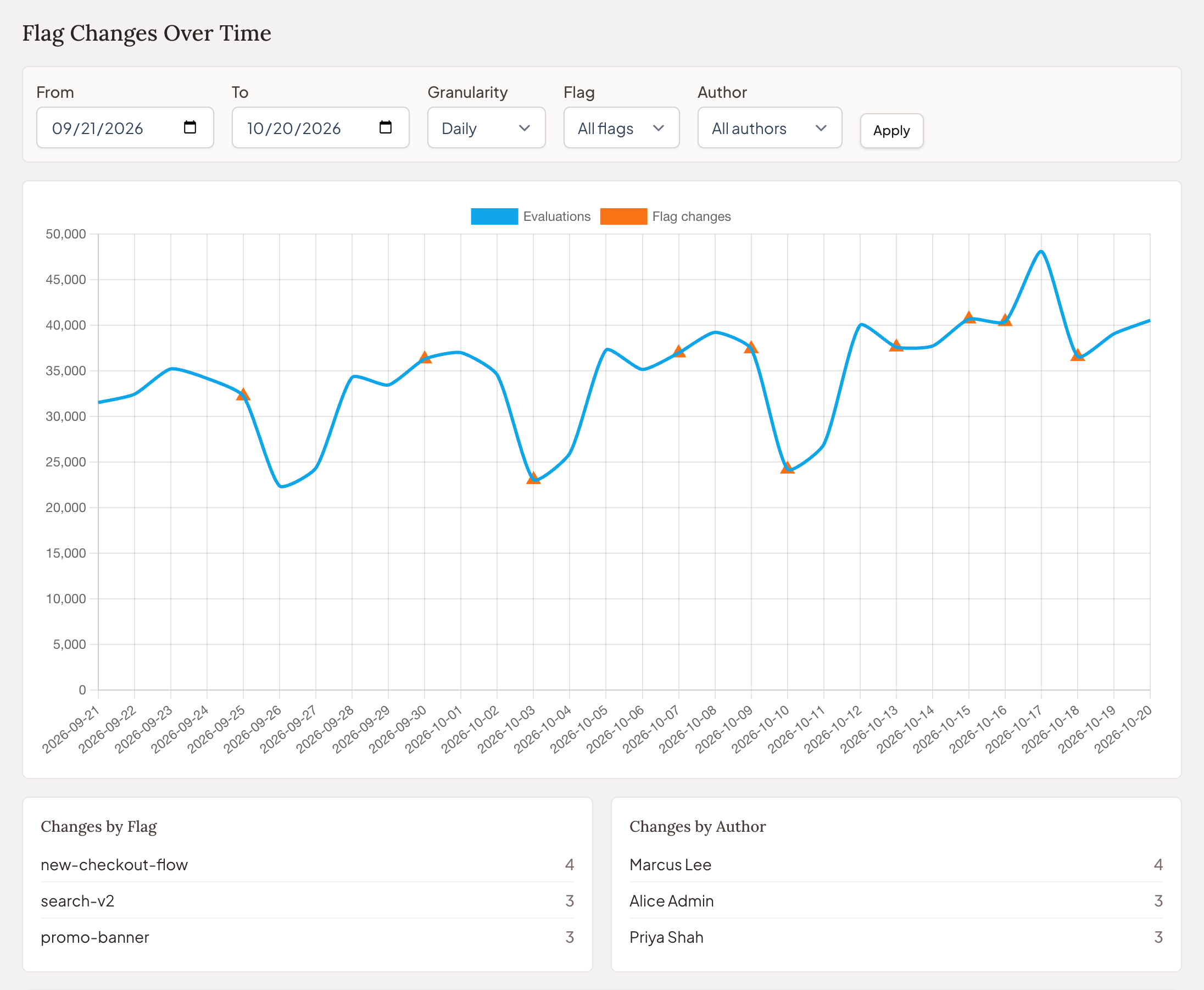
The blue line is evaluations, bucketed daily, weekly, or monthly. The orange triangles are flag changes, each one sitting on the bucket it happened in. Hover a marker and you get the flag, the kind of change, and the person who made it. Below the chart, Changes by Flag and Changes by Author tally the same range, so you can see which flags have seen the most churn and who's been making the changes.
The report covers your whole project, across every environment you have access to. It defaults to the last 30 days. You can change the date range and granularity, or narrow it to a single flag or a single author. Picking a flag narrows the evaluation line to that flag too, so you're comparing a flag's changes against that flag's own traffic.
Every change says what kind of change it was
A marker on a chart tells you something happened. The list underneath tells you what. Each change gets a badge for its type: Initial Publish, Value Changed, Rollout % Changed, Targeting Rule Changed, Republished, or Rollback, plus Flag Created, Flag Deleted, and Metadata Updated for changes to the flag itself. A single publish can carry more than one badge if it changed the rollout and a rule at the same time.
Change history with before and after
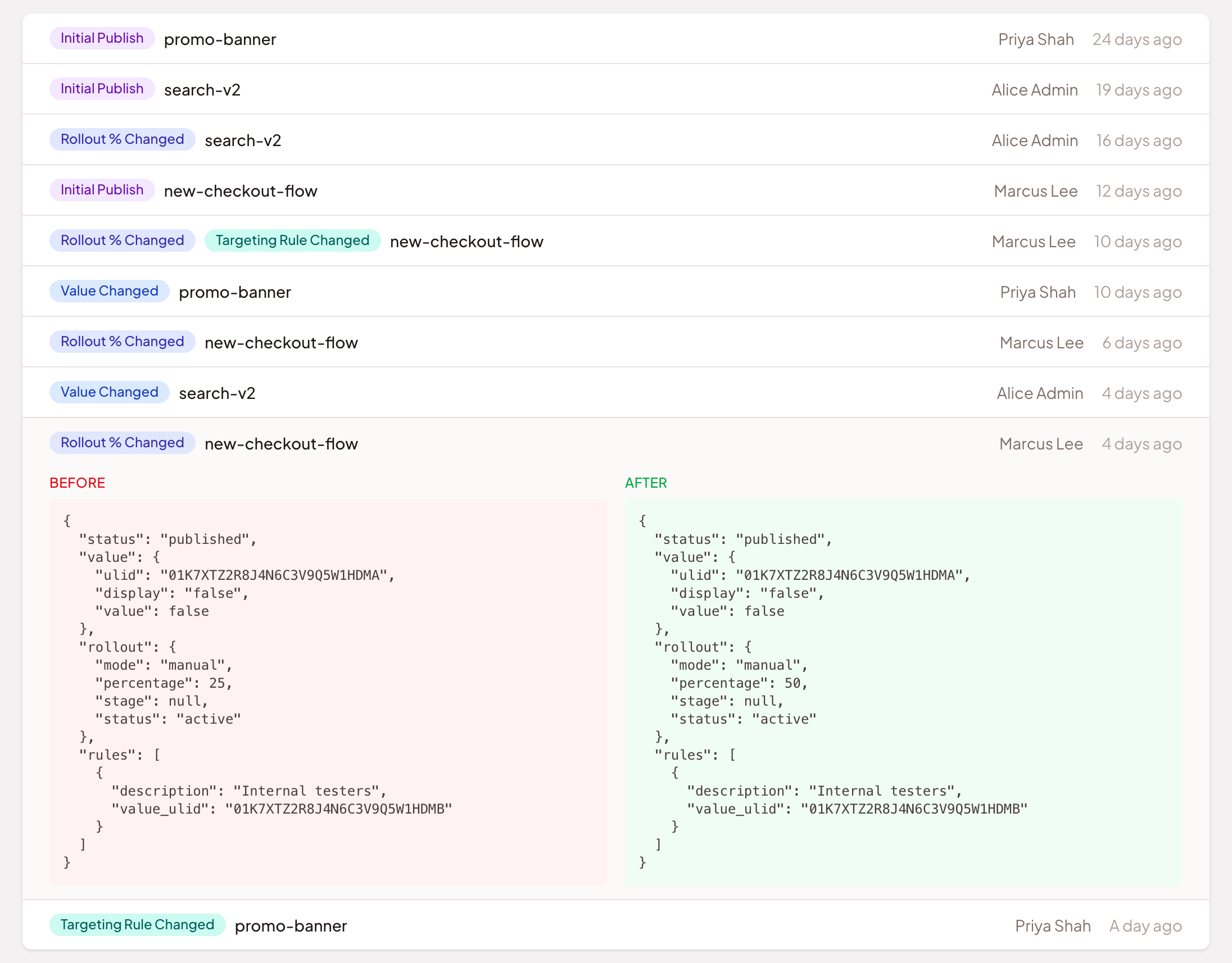
Expand a row and you see the target as it was and as it became, side by side. That's the difference between "somebody published the checkout flag" and "somebody took the checkout rollout from 25% to 50%." Those are very different sentences at 2 PM on a Thursday.
Why flag changes over time matters in your software development lifecycle
Flags are how you change production behavior without a deploy, which means your change history lives in a different place from your code history. Putting it on a timeline closes that gap:
Incident Debugging: When something breaks, start at the point where the line moves and look left. The markers just before it are your shortlist: which flags changed, what changed on each, and who to ask.
Release Attribution: When usage shifts after a launch, you can check whether a flag change lines up with it, instead of arguing from memory about what went out when.
Rollout History: If you ramp a feature from 10% to 25% to 50%, every step is on the chart with its author and its diff. The whole ramp is in one place, in order.
Change Review: Changes by Flag shows which flags get edited the most. A flag that changed a dozen times in a month usually needs a clearer owner, or a decision about whether it should still exist.
What it doesn't do
The line is evaluation volume, not error rate. Zenmanage doesn't see your application's errors, so we can't overlay them, and we'd rather say that than imply otherwise. If your monitoring shows a spike at 2:40, this report shows you what changed in the hours before it. A change sitting next to a spike is a lead worth checking, not proof that the change caused it.
Flag Changes Over Time is part of advanced reporting, so it's included on the Team plan, and you need audit log access to open it. If your plan doesn't include it, there's no sales call. The upgrade is in Billing.
Next time something moves and the first question is what changed, you open one report and look. It pairs well with Flag Evaluation Volume, which breaks traffic down per flag and per environment.