
Targets: Draft, Scheduled, Published, Expired
Every change to a flag in Zenmanage is a target, and every target is in one of four states. Here's what each state means, how publishing expires the target it replaces, and how to keep your history readable.

Zenmanage builds flag changes around one rule: work in progress is never visible to customers. That's why changing a flag isn't an edit. It creates a new target, and that target moves through up to four states on its way to production. Once you know what each state means, releases get easier to plan and history gets easier to read.
What a Target Is
A target is what one flag serves in one environment: the value, any targeting rules layered on top of it, and an optional percentage rollout. A flag that lives in three environments has three live targets, one in each.
The idea that matters is that targets get replaced, not edited. When you change a flag, Zenmanage leaves the live target alone. It copies it, lets you work on the copy, and swaps the copy in when you're ready. The old target stays exactly as it was, so your history shows what you served instead of what you last typed.
The Four States
You move a target through the first three states. The fourth one happens to it.
Draft
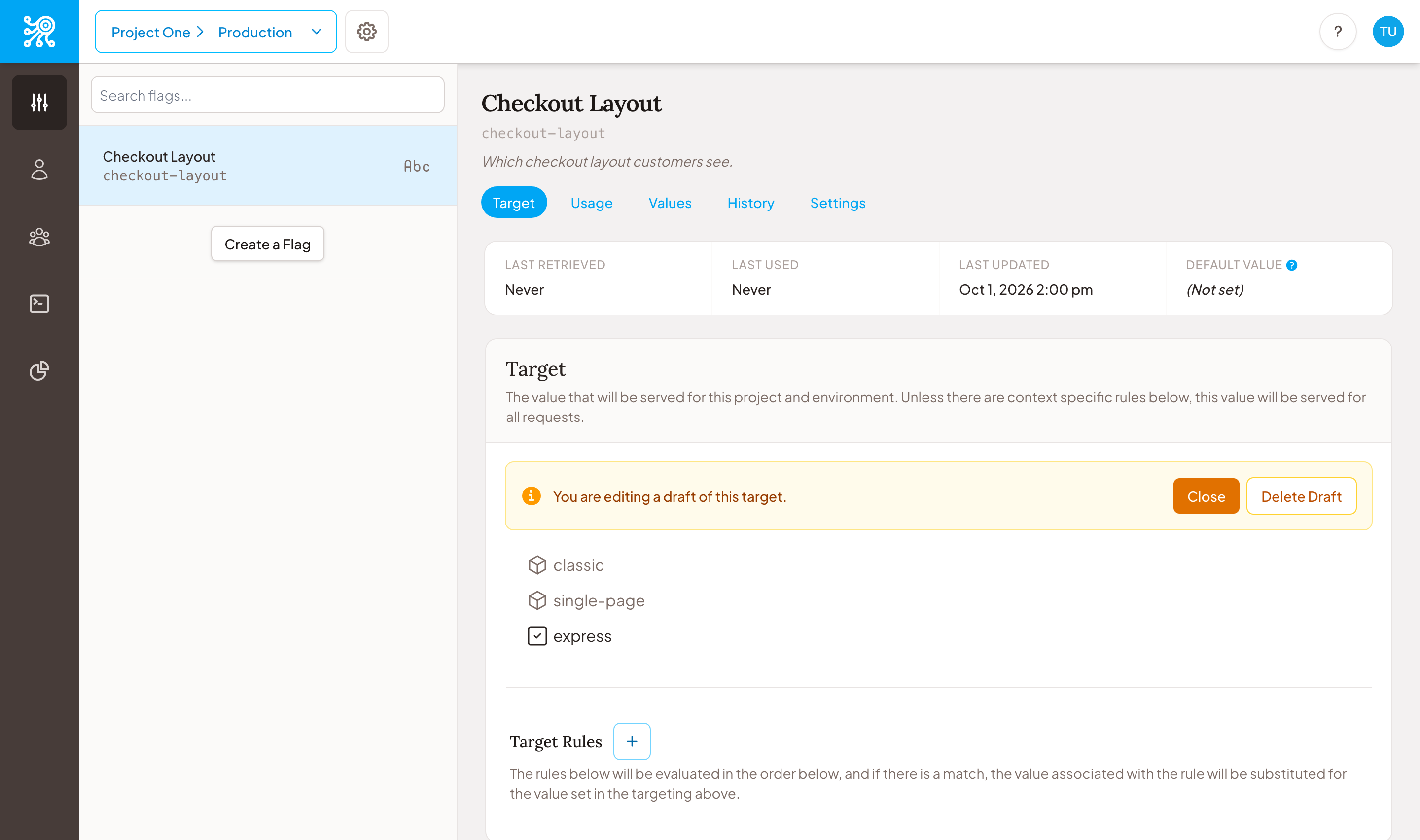
A draft is a working copy. Start editing a flag's target and Zenmanage clones the live one — its value, rules, and criteria — into a new target in the draft state. Percentage rollout settings don't carry over. You add those to the draft if you want a rollout.
A draft is the only state you can edit. Change the value, add or reorder rules, set up a rollout. It's also invisible to evaluation: your SDKs and API calls only ever see the published target. A draft can sit half-finished for as long as you like and no customer will notice. When it's ready, you publish it or schedule it. When it isn't, you delete it.
A draft of the live target
Scheduled
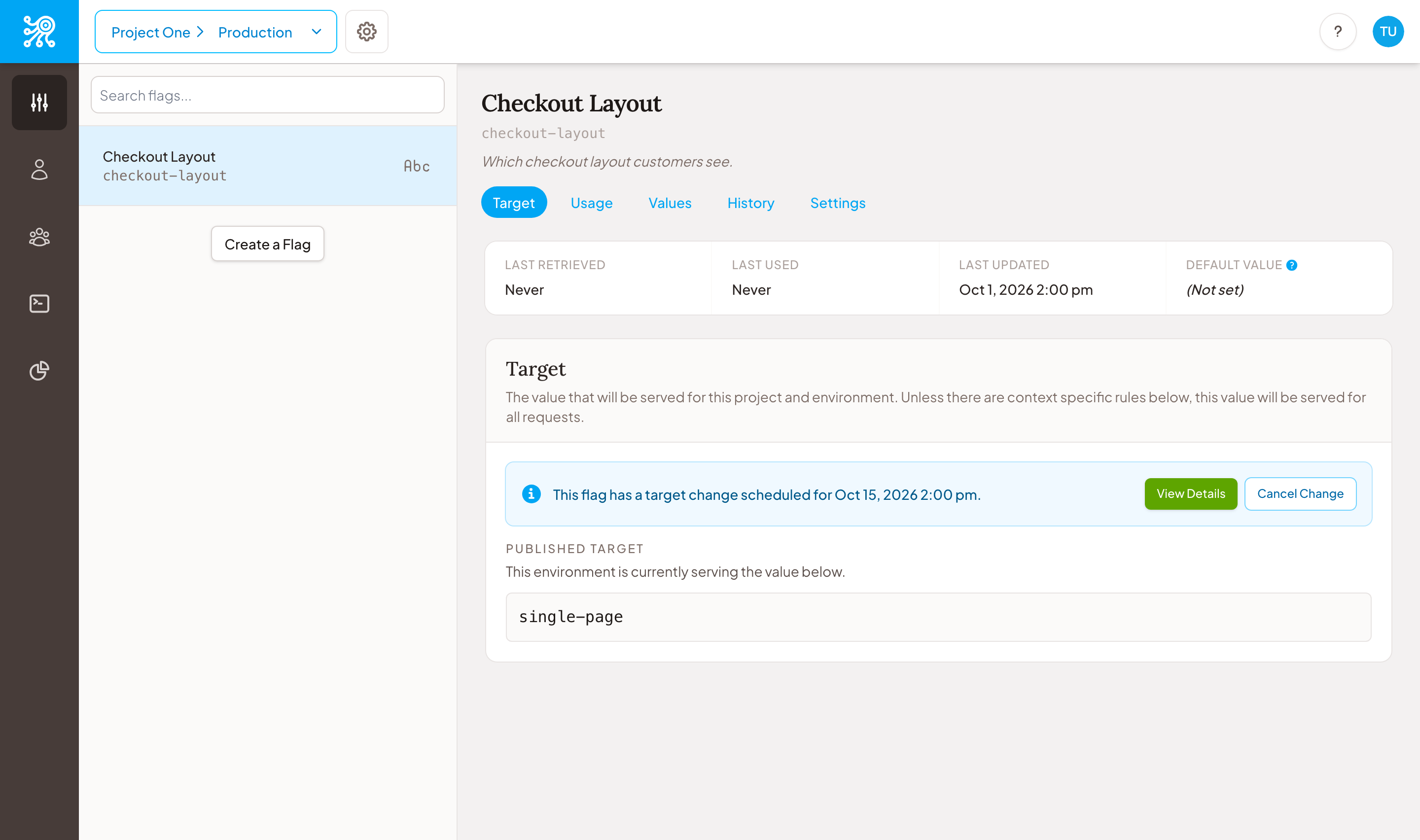
A scheduled target is a draft with a publish time attached. Turn on the Schedule panel on a draft, pick a date and time, and confirm in the review step. The target leaves the draft state and waits.
Two things to know about waiting. First, a scheduled target is locked. You can view its details — the old value, the new value, and the time — or cancel it, but you can't tweak it. To change it, cancel it and start a fresh draft. Second, the clock isn't exact to the second. Zenmanage checks for due changes once a minute, so treat the time as accurate to within about a minute. Plan around that, not around a stopwatch.
When a scheduled target fires, Zenmanage emails your account admins. If nobody was watching at the time, there's still a record that it happened. The scheduled publishing walkthrough covers the mechanics step by step.
A scheduled change on the flag page
Published
Published means live. A published target is what your SDKs and the API evaluate for every request in that environment. One rule makes it trustworthy: you can't edit it. To change what's live, you clone it into a draft, change the draft, and publish that.
Environment settings can make that step harder on purpose. Production can require a comment on every publish, or make you type the flag's key before the Publish button works, while staging stays quick to iterate in. Those gates sit on the way into the published state because it's the one state change customers can feel.
Expired
Expired means superseded. When a new target goes live, the one it replaces expires. It stops being served, keeps its value and rules exactly as they were, and gets an expiry time. Nothing is deleted. Expired targets are your history.
That last part is easy to miss. An expired target isn't a failure state or something to tidy up. It's the record of what you served before. It also keeps rollback honest. Expand a row in the History tab and choose Roll back to this version, and Zenmanage doesn't revive the old target. It copies that target into a new one and publishes the copy, so the history only ever moves forward.
How Expiry Works
Publishing and expiring happen as one step. When a target goes live, the one it replaces for that flag and environment expires in the same database transaction. If any part fails, none of it applies. Your history never shows a gap with nothing live, and apart from the rollout case below, it never shows two targets competing to answer the same question. A scheduled target does the same thing when its time comes.
The one exception is a percentage rollout. If you publish a target with a rollout, the previous target stays published while the rollout runs, because customers who haven't been moved yet still need an answer. When the rollout completes, the old target expires. If you publish a different target without a rollout while one is running, Zenmanage completes the running rollout and expires the targets it replaced. The Rollout Playbook covers how to run one.
A Release Week, Start to Finish
Say you're moving checkout from a single page to an express layout, behind a flag called checkout-layout. The live target serves single-page. You want express live on Thursday at 2 PM.
- Monday: draft. In production, start a draft of
checkout-layoutand change the value toexpress. Nothing changes for customers. The draft sits there while product signs off. - Tuesday: publish in staging. Staging has its own targets, so make the same change there and publish it right away. QA runs against real flag values. Staging's old target expires. Production hasn't moved.
- Wednesday: schedule. The production draft is ready. Turn on the Schedule panel and pick Thursday at 2:00 PM. In the review step, write a comment — Express checkout for the October launch — and confirm. The target becomes scheduled. If the launch slips, you cancel it and there's nothing else to undo.
- Thursday: published, and the old target expires. Around 2 PM, give or take a minute, the scheduled target publishes. The
single-pagetarget expires in the same step. Your admins get an email. - Next week: history. Open the History tab and read the sequence back: what was live, when it changed, and the comment each change carried.
The day before the change fires
express target sits above the published single-page target, and the expired classic target sits below it.
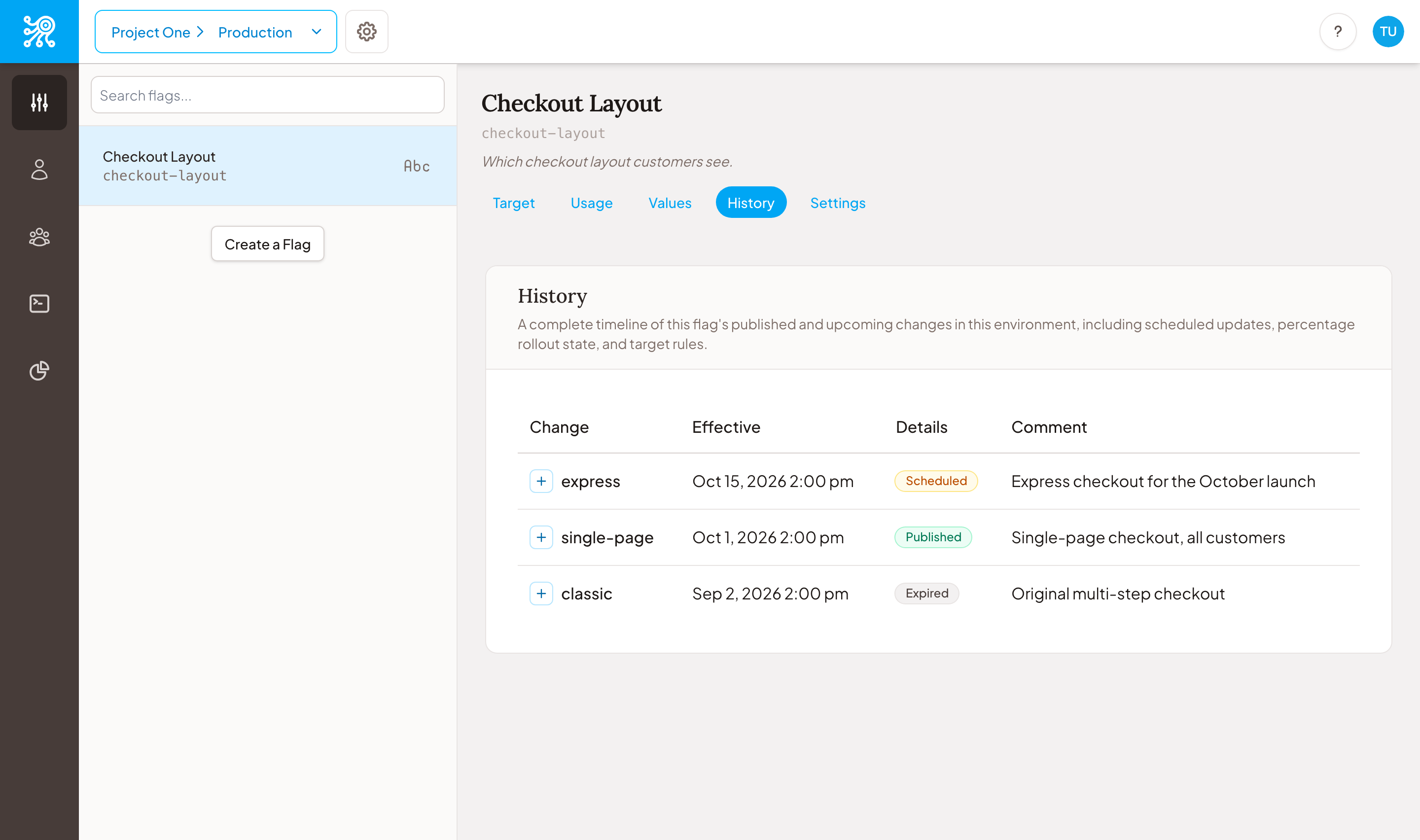
A draft doesn't appear in History, because it hasn't happened yet. It lives on the flag's Target tab until you publish, schedule, or delete it. The screenshots here use sample data, not a real account.
Keeping Your Target History Clean
Expired targets don't need cleanup. The mess accumulates in the other states, and in comments nobody wrote. A few habits keep it readable:
- Keep drafts short-lived. A draft is a copy taken when you start it. Publish it and it replaces whatever is live, including a change someone else published after you began. A draft that sits for a week is a stale copy waiting to undo a teammate's work. Finish it or delete it.
- Make the comment the name. Targets don't have names, so the comment is the label in History. Write it like a commit message: say why, not what, and include the ticket or launch name. Turn on required comments for production and new changes there won't arrive without one.
- Check what's scheduled before a freeze. A scheduled target fires with nobody around, which is the point, and also the risk when plans change. Look at flags with a pending change before a release freeze or an incident, and cancel the ones that no longer apply. Cancelling removes the pending change and publishes nothing in its place.
- Roll back by publishing. If a published target is wrong, don't hunt for a way to fix it in place. Roll back from History, which publishes a copy of the earlier version, or start a new draft. For a live incident, the kill switch and incident rollback playbook is the faster path.
- Leave expired targets alone. They're what an audit reads. The audit history guide shows how that record fits together with the audit log.
Four States, One Customer-Facing Answer
Four states sounds like a lot until you notice the pattern. Customers only ever see published targets. The other three states are where your team does its thinking: drafting, queuing, and looking back. Keeping those separate is what lets you change a flag on a Tuesday afternoon without anyone outside the team noticing until you want them to.