
Reporting: Audit Log
A new Audit Log report lists every change in a project with who made it, when, and what it was before and after, and exports the filtered result to CSV for reviews and post-mortems.

Somebody asks a simple question in a post-mortem or an access review: who turned that on, and what was it before? If the answer lives in chat scrollback, it's a guess. If it lives in someone's memory, it's a worse guess. Flag changes happen in a dashboard, outside your deploy pipeline, so the record of them has to come from the tool that made the change.
Zenmanage has always recorded those changes. The Audit Log report is the part where you can actually read them. It lists every audited event in a project, lets you narrow it down, and exports what you've narrowed to a CSV you can hand to someone else. You'll find it under Audit & Activity in the reports section.
Audit Log Report
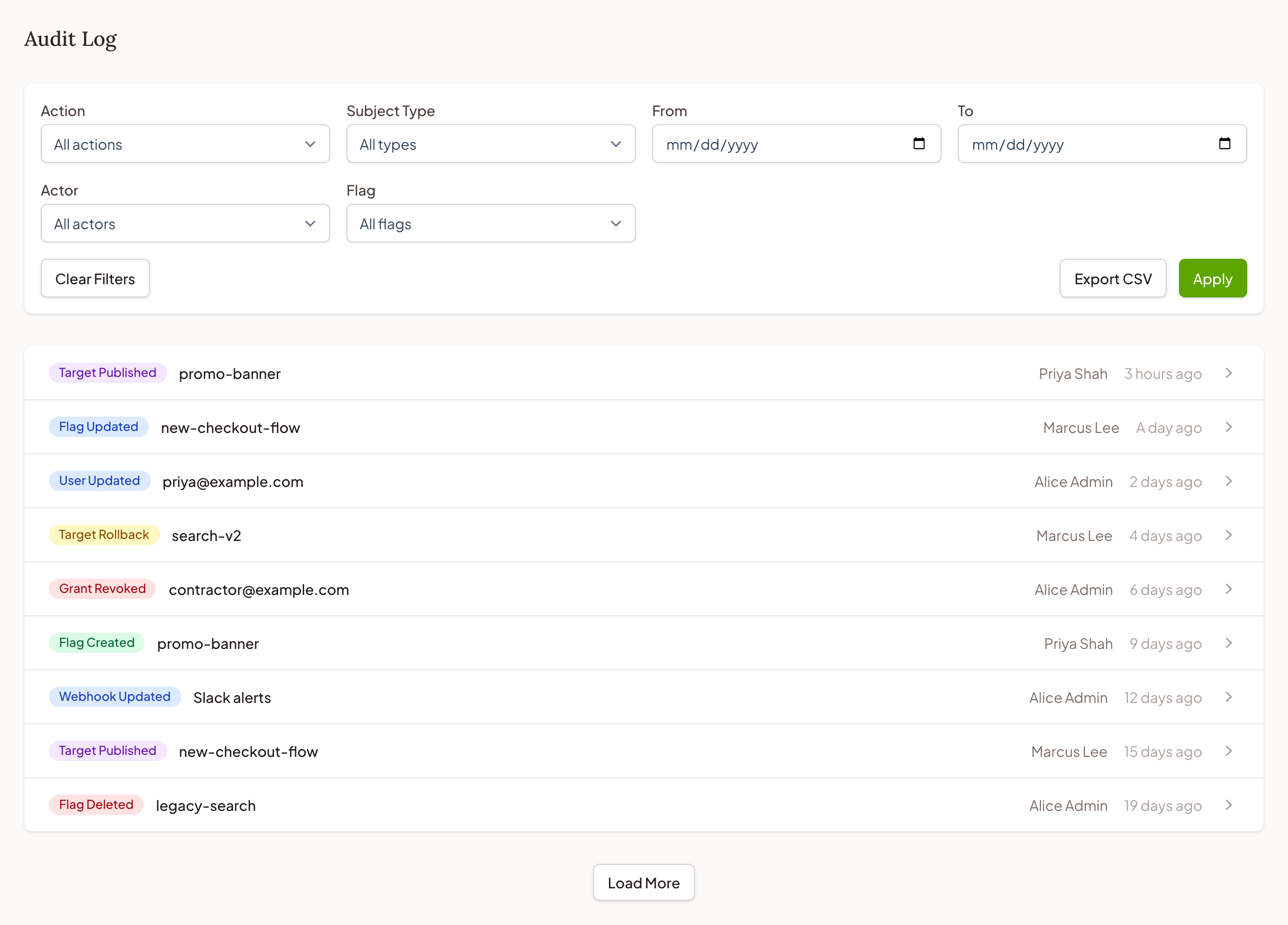
Each row is one event: a badge for what happened (Flag Created, Flag Updated, Target Published, Grant Revoked, and so on), the thing it happened to, the person who did it, and when. The list is newest first, and Load More pages back through older events.
Every row opens up to the before and after
Click a row and it expands into the full record: who did it, with their name and email, the exact action, the subject, and the time with its timezone. When the request was recorded, you also get the IP address and a request ID. If the change touched stored configuration, there's a Before and an After side by side.
An expanded event
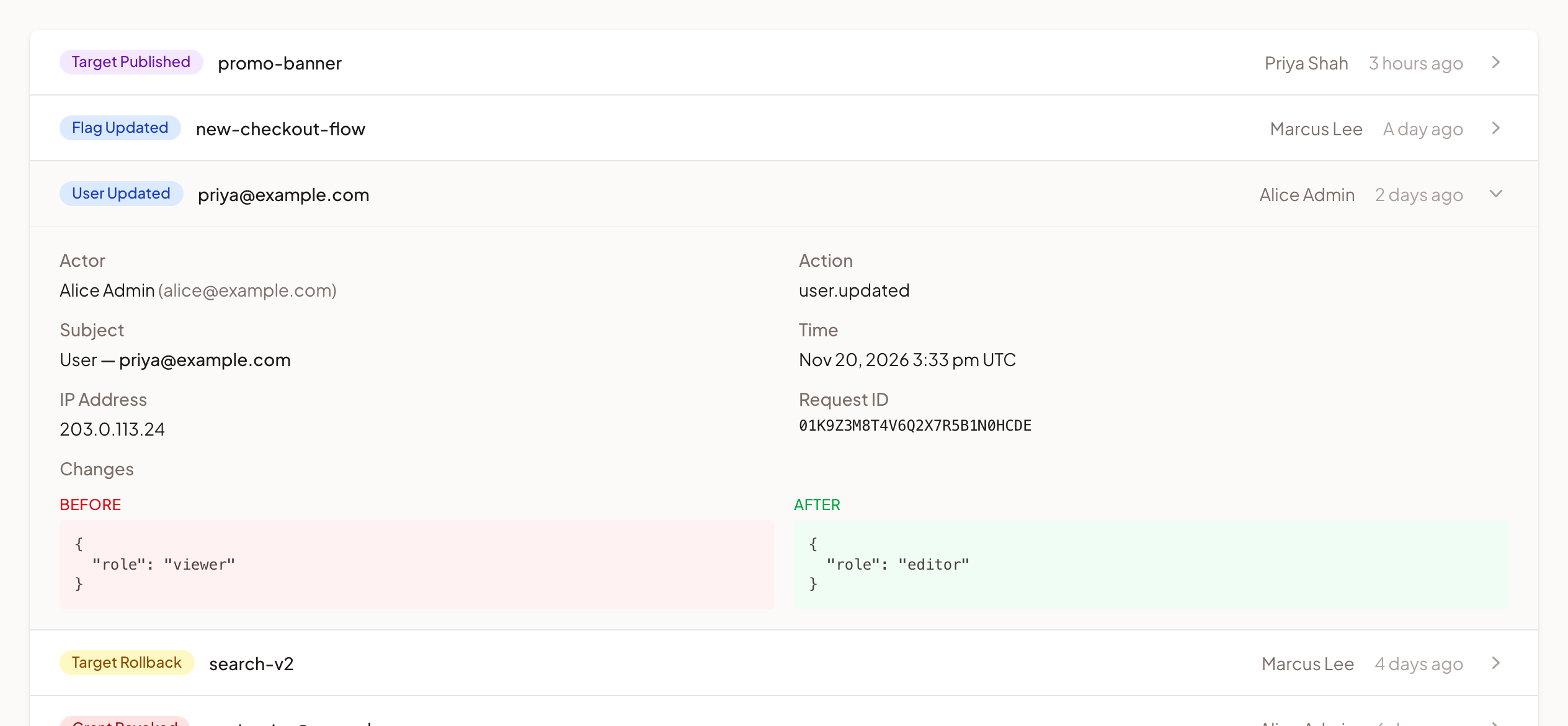
That's the difference between "somebody changed Priya's access" and "Alice moved Priya from viewer to editor on Friday afternoon." The second one is something you can put in a review document.
Narrow it to the question you're asking
Five filters, and they combine:
- Action: one kind of event, such as Target Published or Grant Revoked. There are 22 to pick from, covering flags, targets, projects, environments, segments, users, webhooks, and grants.
- Subject type: flags, targets, projects, environments, segments, users, webhooks, grants, and a few more.
- From and To: a date range.
- Actor: one person's changes.
- Flag: everything that touched one flag. This includes the flag's own edits and the target publishes, rollbacks, and rollout changes scoped to it, merged into one timeline, so you don't have to interleave two histories by hand.
So "what did Alice change last week" is one filter, and "show me every rollback on the checkout flag this quarter" is two.
Export what you filtered
Export CSV downloads the events your current filters match, within the date range you've set. The file has one row per event and thirteen columns: created_at, actor_name, actor_email, actor_type, action, subject_type, subject_label, subject_ulid, scope, before, after, ip_address, and request_id. The before and after are the same JSON you see on screen, so the export isn't a thinner version of the report.
Two rules to know before you rely on it. An export always covers a bounded range, up to 180 days. If you haven't set one, the export fills in the last 30 days, so older events that match your other filters won't be in the file. Set From and To yourself whenever the period matters. For a longer review period, export it in sequential chunks. On screen, a date range can span up to 31 days, so use the export when you need a wider window than that.
Why this matters in your software development lifecycle
Incident Review: After an incident, filter to the window around it and read what changed. It pairs with Flag Changes Over Time: that report shows you where to look on a timeline, and this one gives you the full record behind each marker.
Access Reviews: Set Subject Type to Grant and you get every grant event in one list: who gained access, who lost it, and who made the call. The Action filter takes one value at a time, so pick Grant Created or Grant Revoked if you want only one side. That's the evidence an access review actually asks for.
Compliance Requests: When an auditor or a customer's security team asks for change history for a period, you export a CSV instead of assembling one from screenshots.
Flag Cleanup: Before you delete an old flag, filter to it and see who last touched it and when. It's a quick way to find the right person to ask.
What it doesn't do
The report covers the project you're in, across all of its environments, and it has no environment filter. Exports are on demand: there's no scheduled or recurring export. And it's a record, not a certification. Entries are append-only, because the application refuses to update or delete them, and we keep them for the life of your account. That makes it good evidence of what happened. Whether it satisfies a particular framework is a question for your auditor.
The Audit Log is included on the Team plan, and you need the audit log permission to open it. That permission is separate from write access, so a compliance reviewer can read the log without being able to change a flag. The Scoped Permissions Setup Guide covers how. If your plan doesn't include it, there's no sales call. The upgrade is in Billing.
Next time somebody asks who changed something, you open the report, filter, and answer. If you want the longer version of how to use it during an incident, the Audit History Guide walks through it step by step.