
Schedule When Your Flag Targets Are Published
Zenmanage now lets you schedule feature flag target changes to be published at a future date and time, giving you more control over your releases.

With scheduled flag publishing, you can plan ahead and set your feature flag target changes to go live at the exact date and time you choose — no more waiting around to manually flip the switch.
You need a flag change to go live at 6 AM on launch day, but nobody wants to be awake at 6 AM to flip the switch. With scheduled flag target publishing, you set the date and time and Zenmanage handles the rest — giving you precise control over your release timing without requiring manual intervention at the moment of deployment.
Why Scheduled Publishing?
Up until now, updating a feature flag target value was an immediate action — you make the change, and it goes live right away. While this is great for quick iterations, there are plenty of scenarios where you need more control over when a change takes effect:
- Coordinated launches: Align your feature rollout with a marketing campaign, product announcement, or a specific release window.
- Off-hours deployments: Schedule changes to go live during low-traffic periods without requiring someone to be online at that time.
- Time-sensitive features: Enable seasonal promotions, limited-time offers, or event-driven functionality at exactly the right moment.
- Cross-team coordination: Give teams confidence that changes will be published at an agreed-upon time, reducing miscommunication.
How It Works
Scheduling a flag target change is simple and fits naturally into your existing workflow. When updating a feature flag's target value, you'll now see a new option to schedule the change instead of publishing it immediately.
1
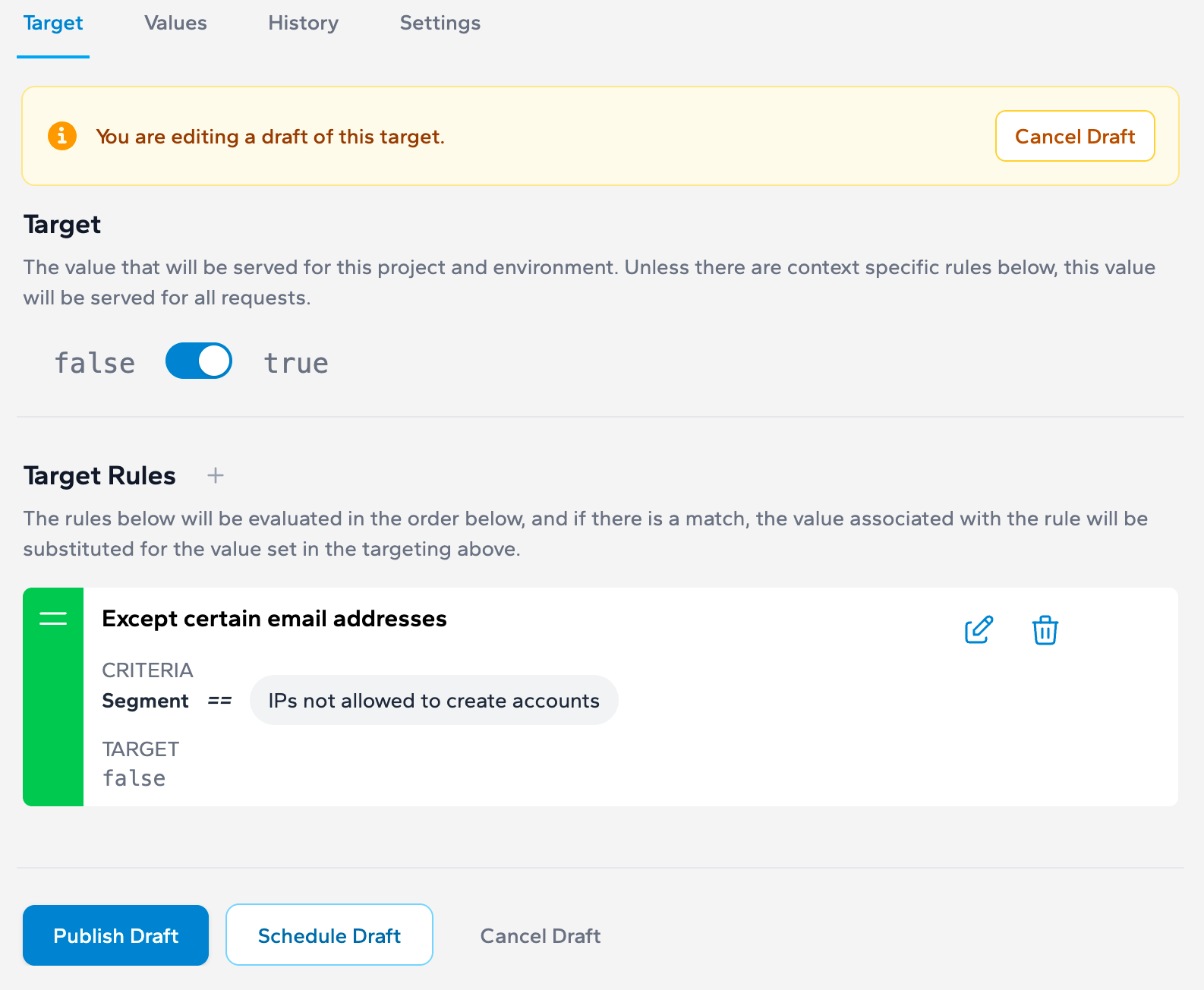
Set your target value
Configure the new target value for your feature flag just as you normally would.
2
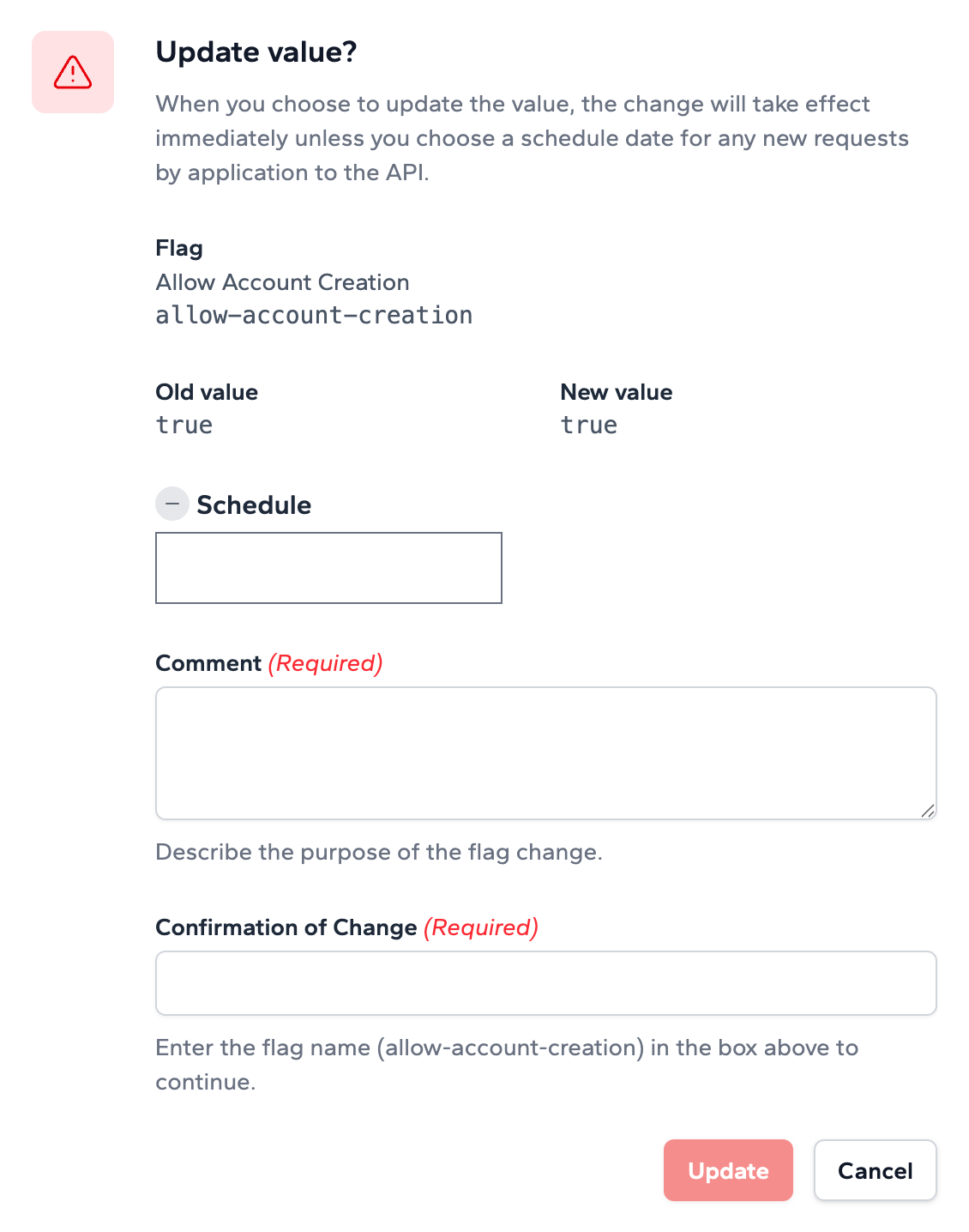
Choose "Schedule"
Instead of publishing immediately, select the schedule option to pick a future date and time.
3
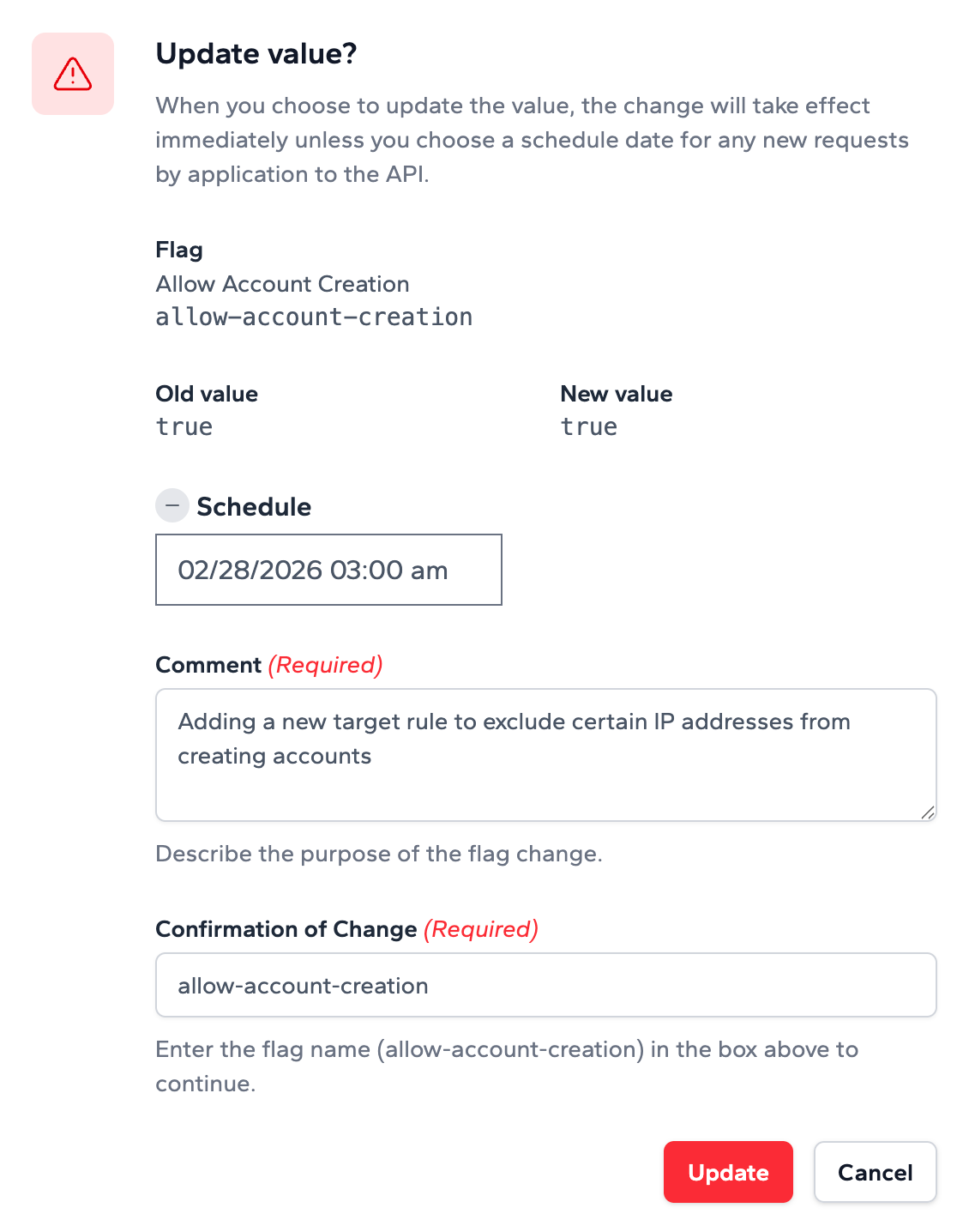
Select the date and time
Use the date and time picker to choose exactly when you want the change to take effect. Times are displayed in your local timezone for convenience.
4
Confirm and save
Review and confirm the scheduled change. The flag will automatically update at the specified time.
Managing Scheduled Changes
Once a change is scheduled, you'll have full visibility and control over it. Scheduled changes are clearly indicated on the feature flag detail page so there's no ambiguity about upcoming modifications.

You can:
- View upcoming schedules: See all pending scheduled changes for a feature flag at a glance.
- Cancel a scheduled change: Changed your mind? Cancel a scheduled change at any time before it takes effect.
- Edit the schedule: Adjust the date and time of a pending scheduled change if plans shift.
Audit Trail
Scheduled changes are fully integrated with Zenmanage's audit logging. Every scheduled change — including its creation, modification, cancellation, and execution — is recorded in the activity log. This gives your team complete traceability of when changes were planned and when they were applied.
Getting Started
Scheduled flag target publishing is available now for all Zenmanage users. Simply navigate to any feature flag in your project environment, update the target value, and choose the schedule option to try it out. No additional configuration is required.
We believe this feature will help teams release with more confidence and precision. As always, we'd love to hear your feedback — don't hesitate to reach out and let us know how scheduled publishing fits into your workflow.